Connect Padlet to Canvas LMS (for padlet.com accounts)
 Updated 3 weeks ago
by
Rana Wilds
Updated 3 weeks ago
by
Rana Wilds
Setting up LMS integration for Canvas
This article applies only to accounts that end in padlet.com.
Before you begin
For this integration, different steps apply depending on your role. Admins will complete a one-time setup to connect Padlet and Canvas, while Teachers will add padlets to their courses once the connection is active.
What you need
Role | Requirements |
Admin | - Access to the Canvas Admin dashboard - Access to the Padlet for Schools owner account (on padlet.com) |
Teacher | - Access to a course within Canvas - Access to your school's Padlet for Schools domain (padlet.com) - Admins must have completed setup before you begin |
Once you have the correct access, follow the steps below for your role.
For Admins
Admins handle the one-time setup that connects Padlet to Canvas through LTI. After this setup, Padlet will appear seamlessly in Canvas, making it simple for teachers and students to collaborate without leaving the LMS.
Note: You will only need to do this once per organization.
- Access developer keys
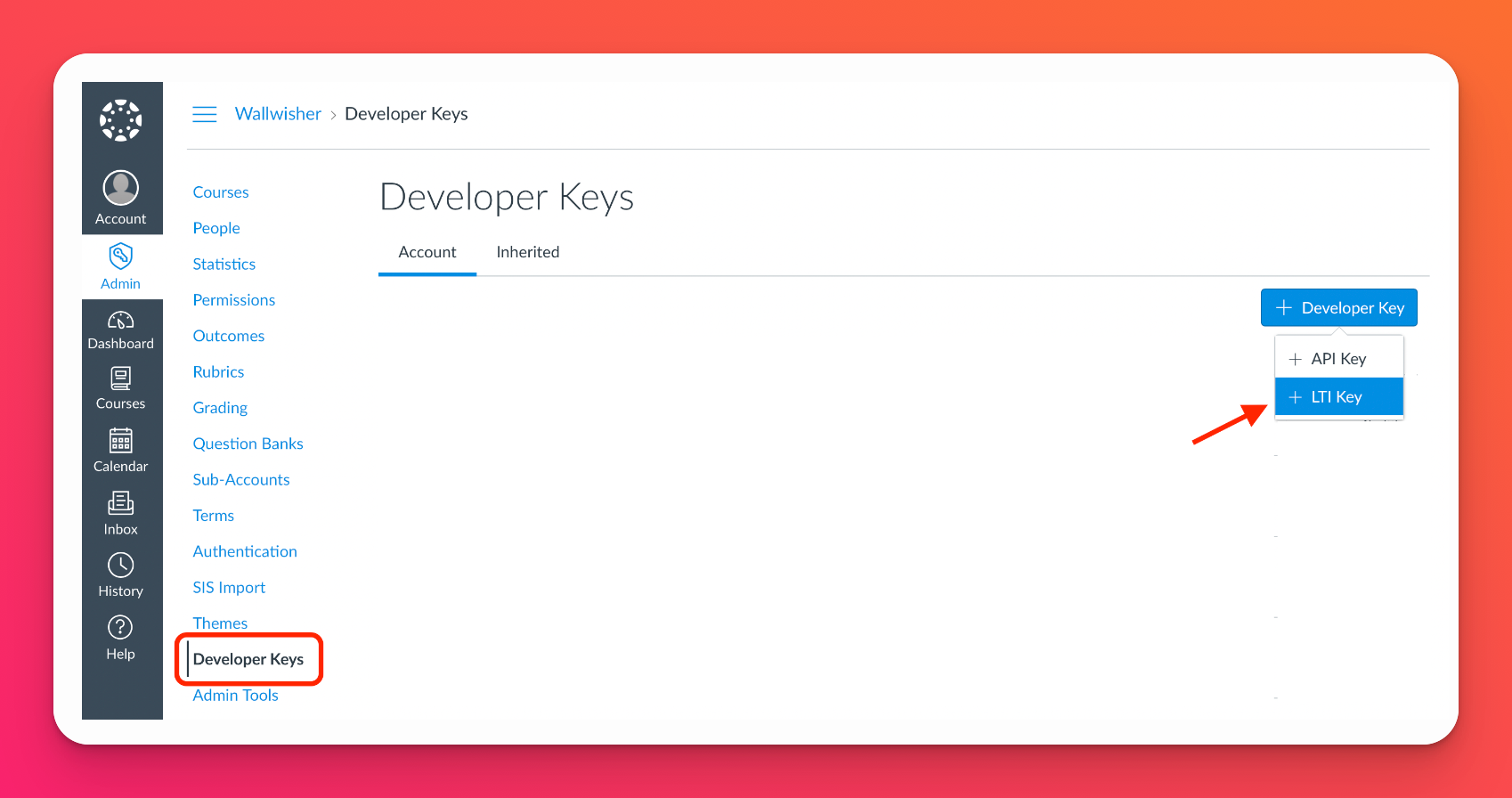
Login to the Canvas Admin account. Go to the 'Add LTI Key' screen by following these steps:
Admin > Developer Keys > Account > + Developer Key > + LTI Key
- Add Padlet LTI configuration
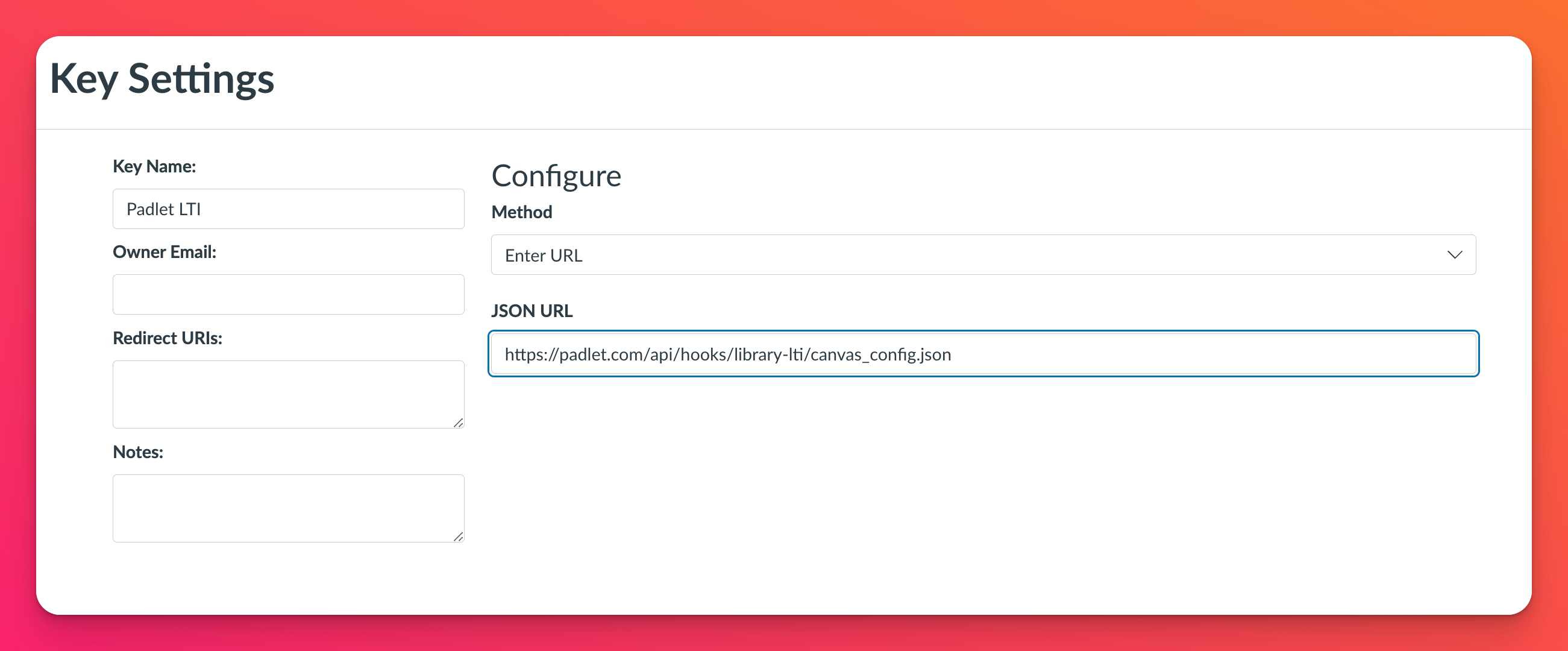
Fill in:
- Key Name (For Admin identification purposes only)
- Select Method: Enter URL
- Enter JSON URL: https://padlet.com/api/hooks/library-lti/canvas-config.json
Click Save and reopen the settings to confirm the fields are populated. You may need to refresh a few times before everything is populated correctly.
- Adjust additional settings
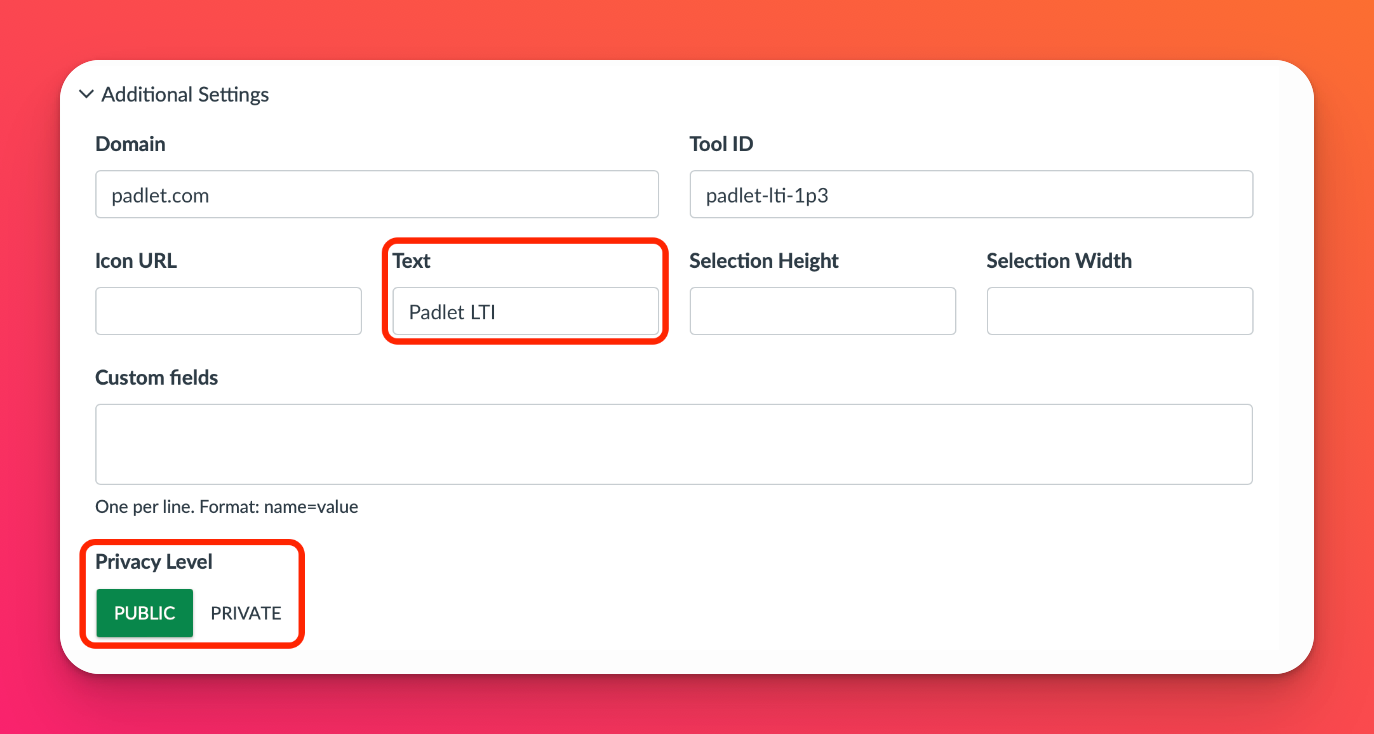
Open the tool settings again by clicking on the Edit button.
Under Additional Settings, set 'Visibility' to Public and ensure the 'Text' field is visible to teachers. Then, click Save.
- Enable grade passback (optional)
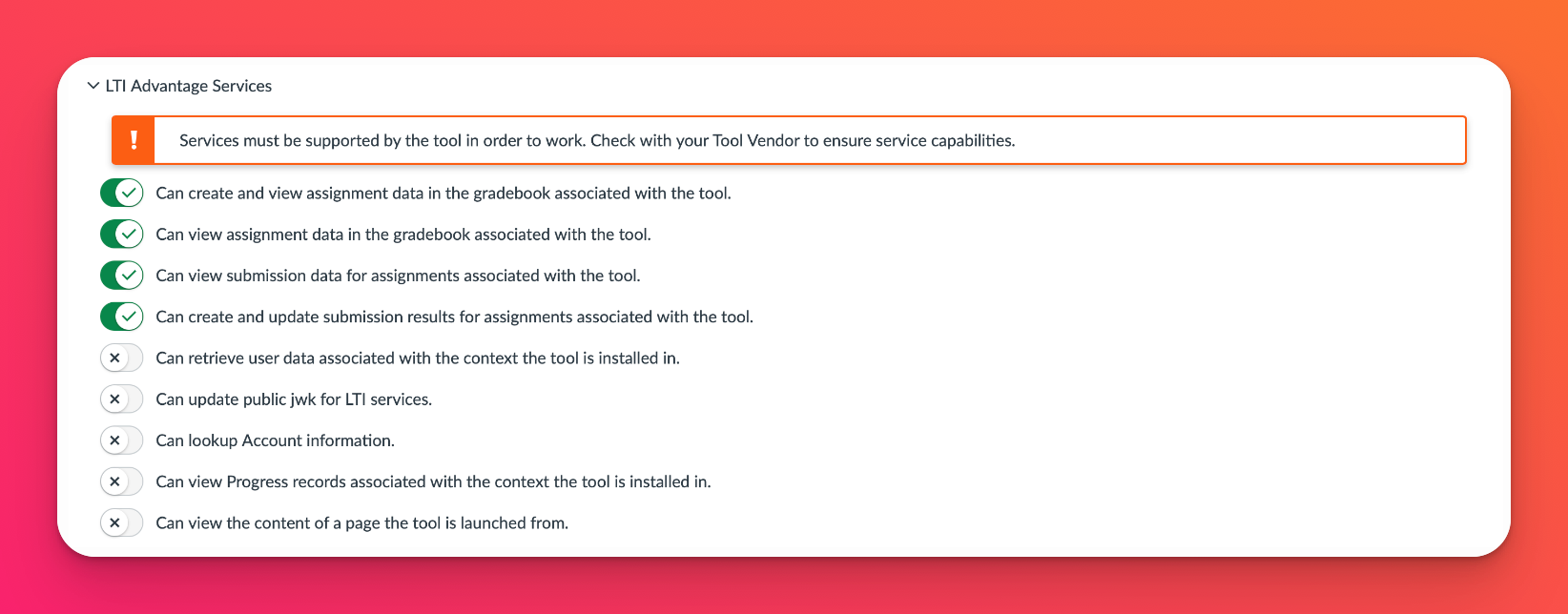
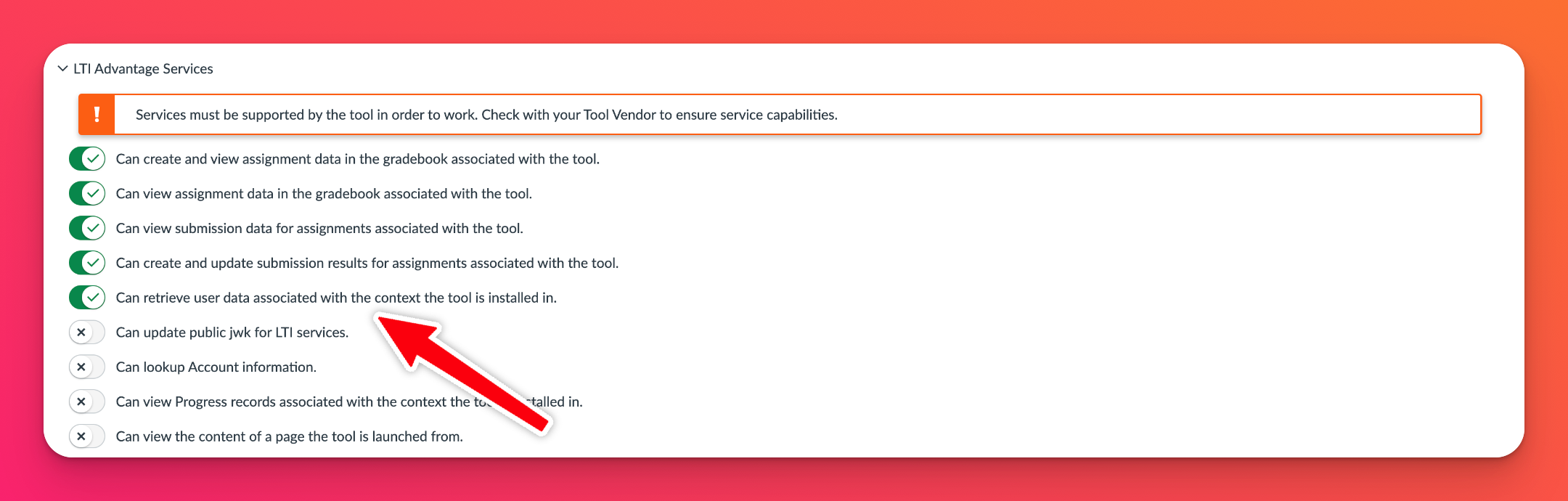
If you want grades from Padlet submissions to sync back to Canvas, under 'LTI Advantage Services,' enable the following:
- Enable automatic user group provisioning (optional)
To allow automatic user group creation, under 'LTI Advantage Services,' toggle Can retrieve user data associated with the context the tool is installed in to the ON position.
- Generate the LTI link deployment token
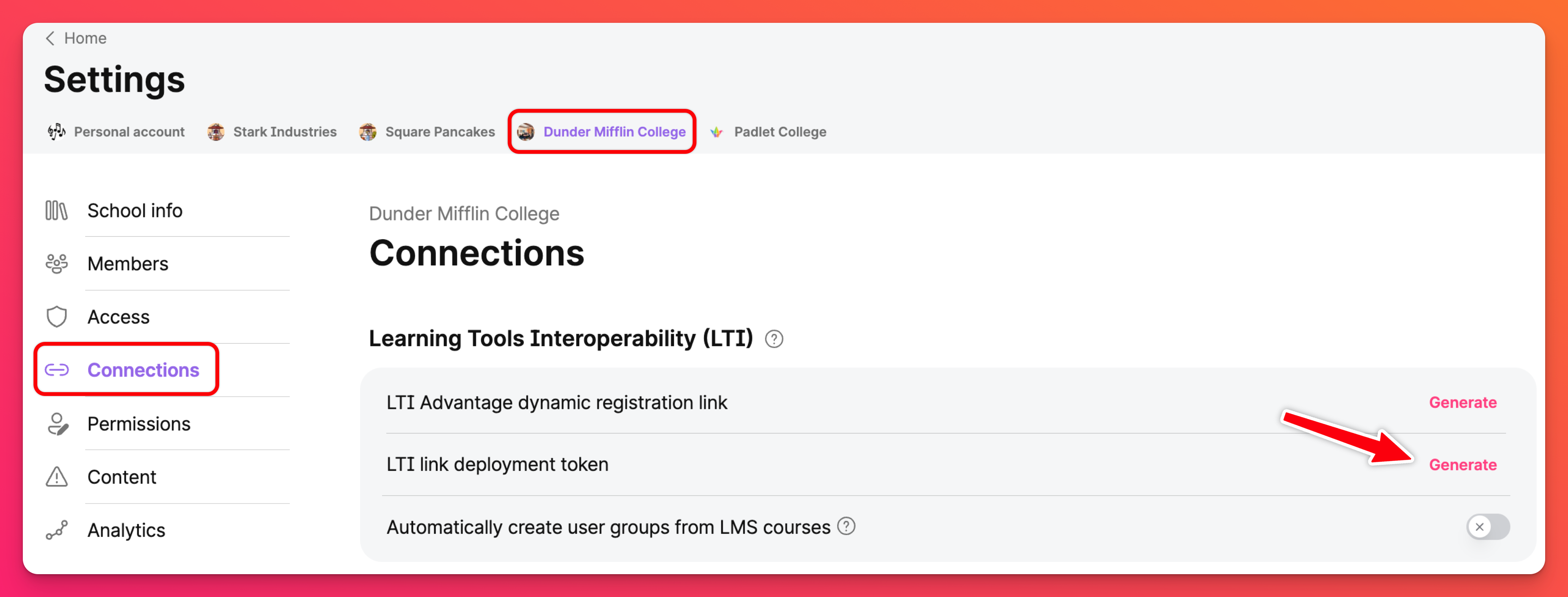
In your Padlet for Schools admin account, click on the Settings cog icon in the upper-right of your dashboard. Then, click on the school account (at the top) followed by Connections.
Click Generate next to 'LTI link deployment token.' Then, Copy the token - you'll use it in the next step to authenticate your Canvas instance.
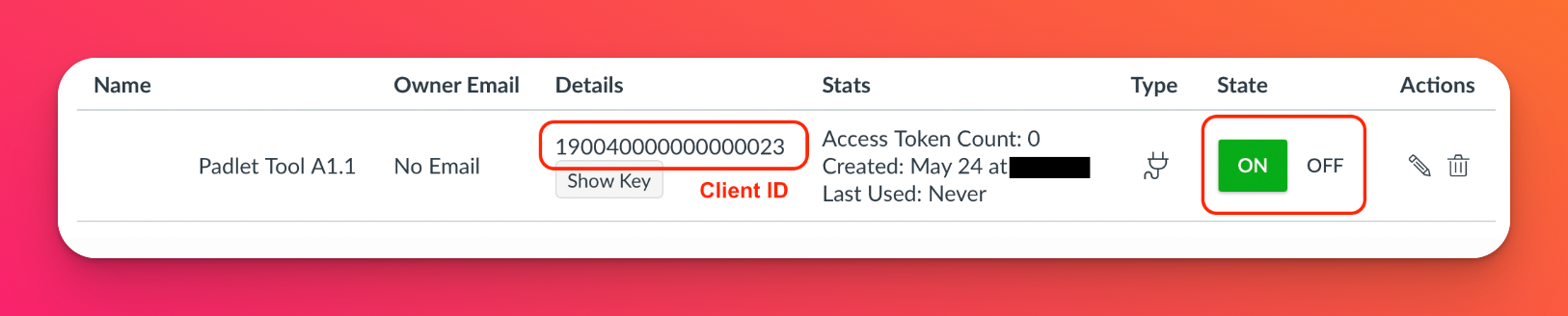
Copy and paste the token code given into the 'Token' field on the pop-up in Canvas.
Note: This will only be needed in the initial set-up.
- Turn the tool on
Toggle the tool's 'State' to ON.
- Add the app to Canvas
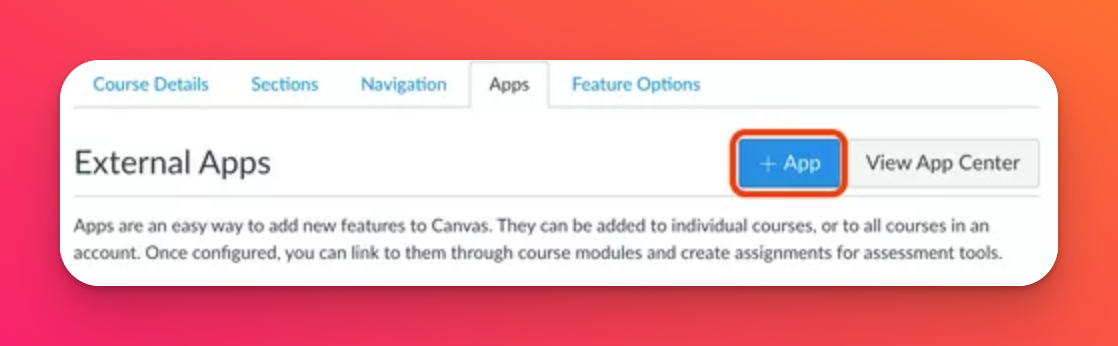
On the same Admin page, go to Settings > Apps > View App Configurations
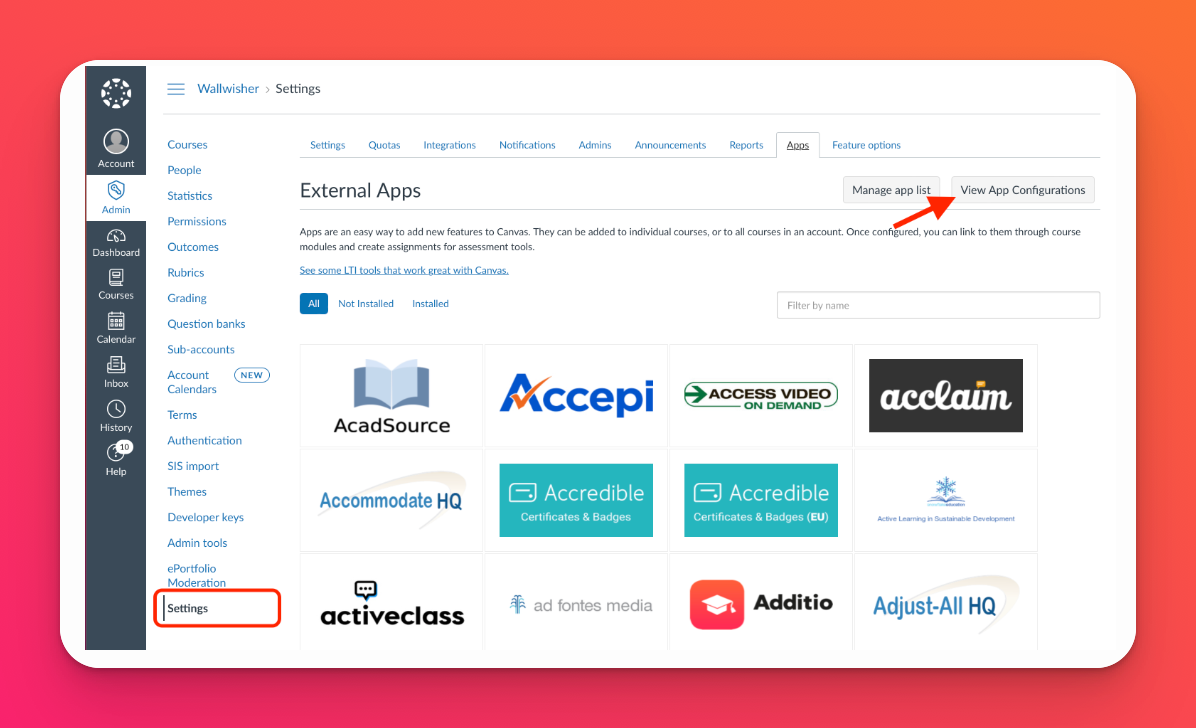
Click + App.
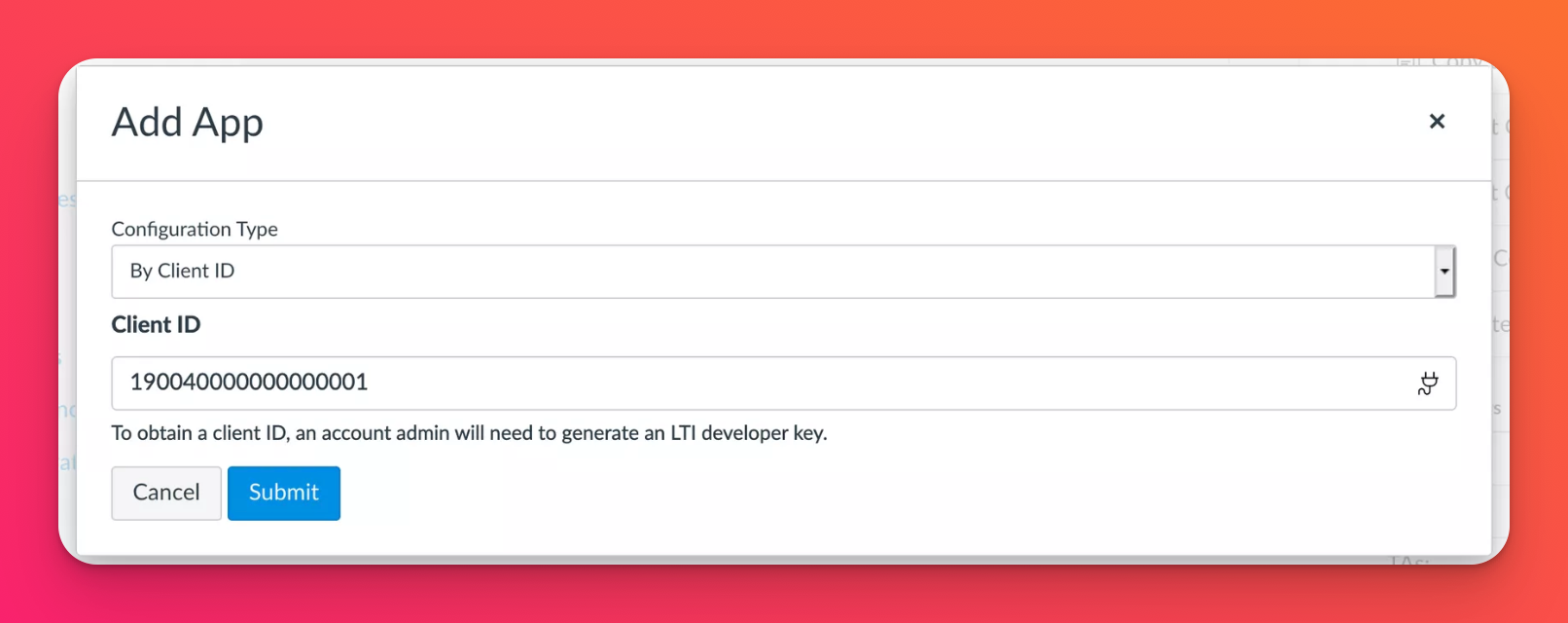
Under 'Configuration Type,' select By Client ID. Then, paste the Client ID copied in step 7.
Click Submit, then Install.
For Teachers
Once your admin has completed the setup, teachers can begin using Padlet directly in Canvas.
- Create a new assignment
In Canvas, go to Courses > Assignments > + Assignment
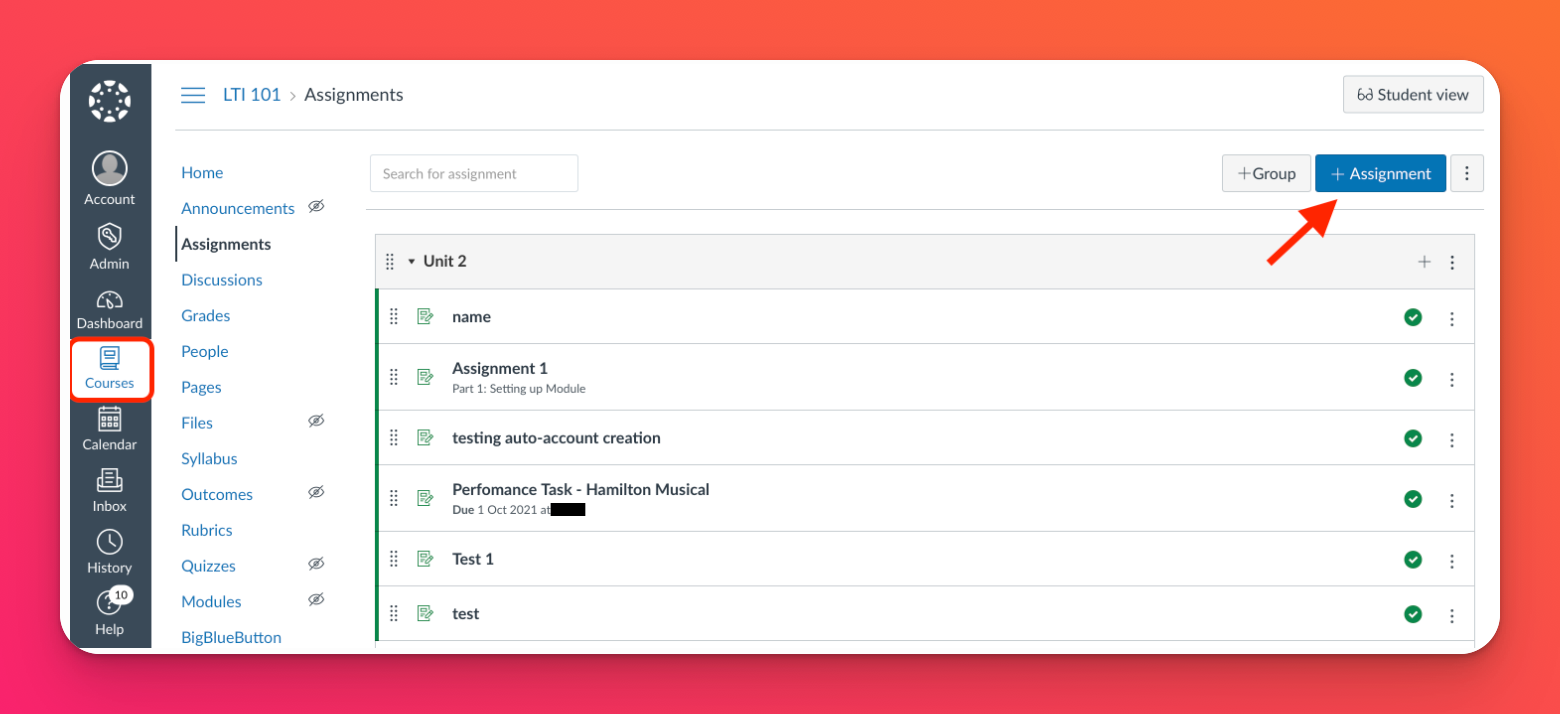
Fill out the assignment details (title, instructions, points, etc.).
- Select submission type
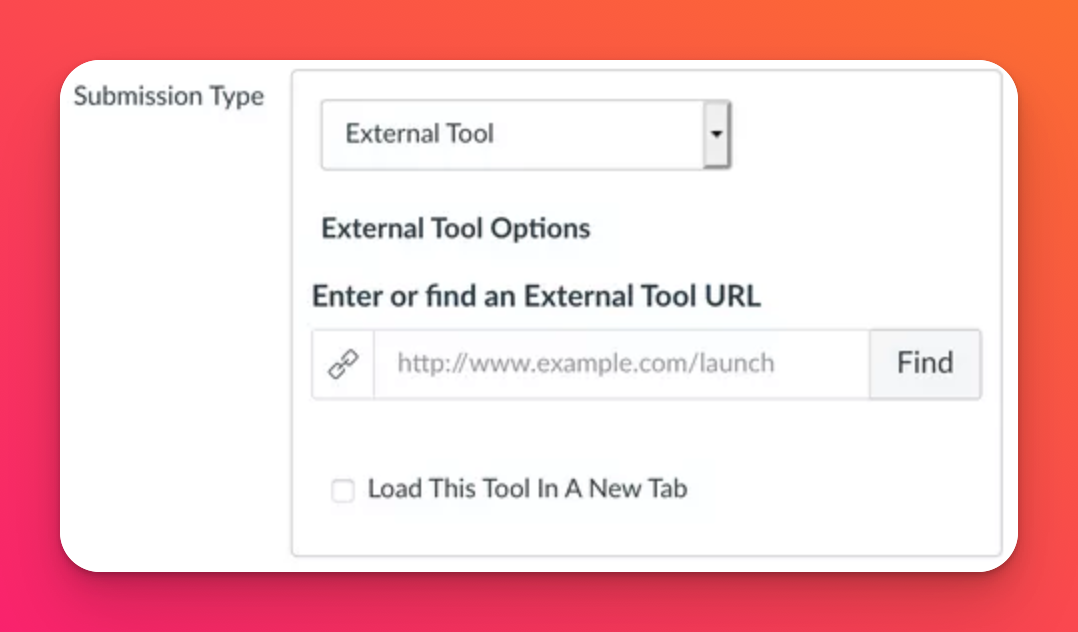
Under 'Submission type,' choose External Tool and click Find.
- Choose Padlet as the External Tool
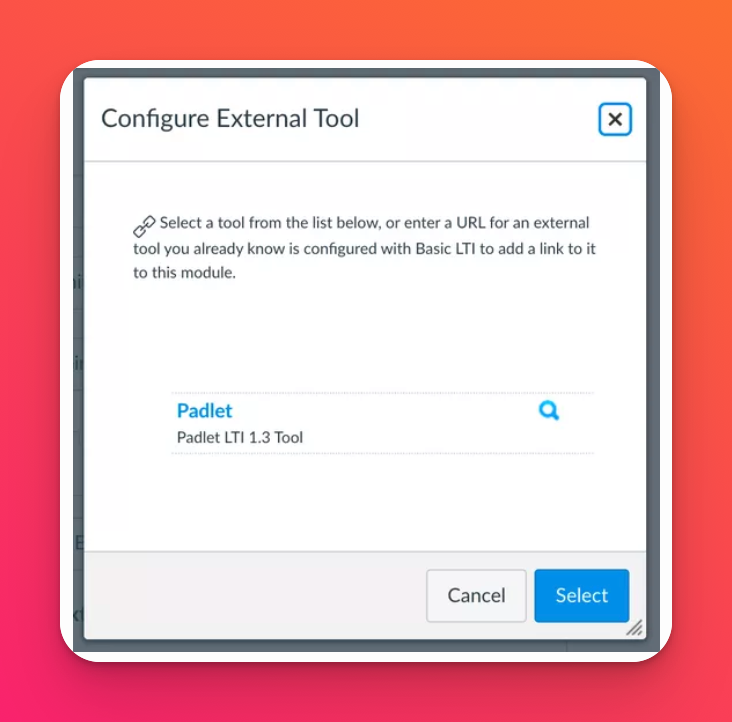
From the list, select Padlet LTI 1.3 Tool (or the name your admin assigned) and click Select.
- Log in and select a padlet
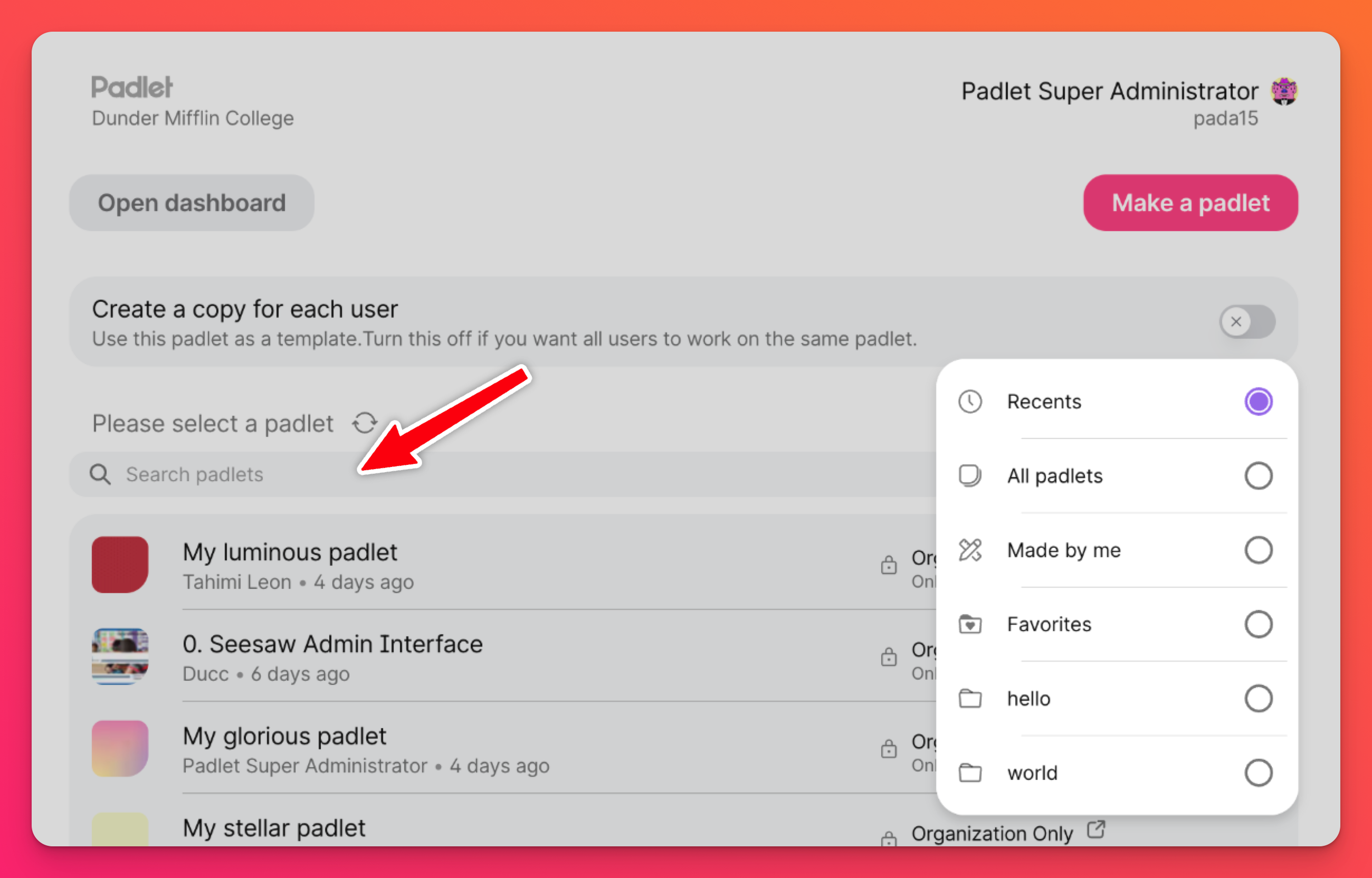
When prompted, log into your Padlet for Schools account. A pop-up will appear showing existing padlets within your account. You can use the search bar or filter by folder to find the one you need.
Select a padlet from the list and click Add. It will appear directly inside your module.
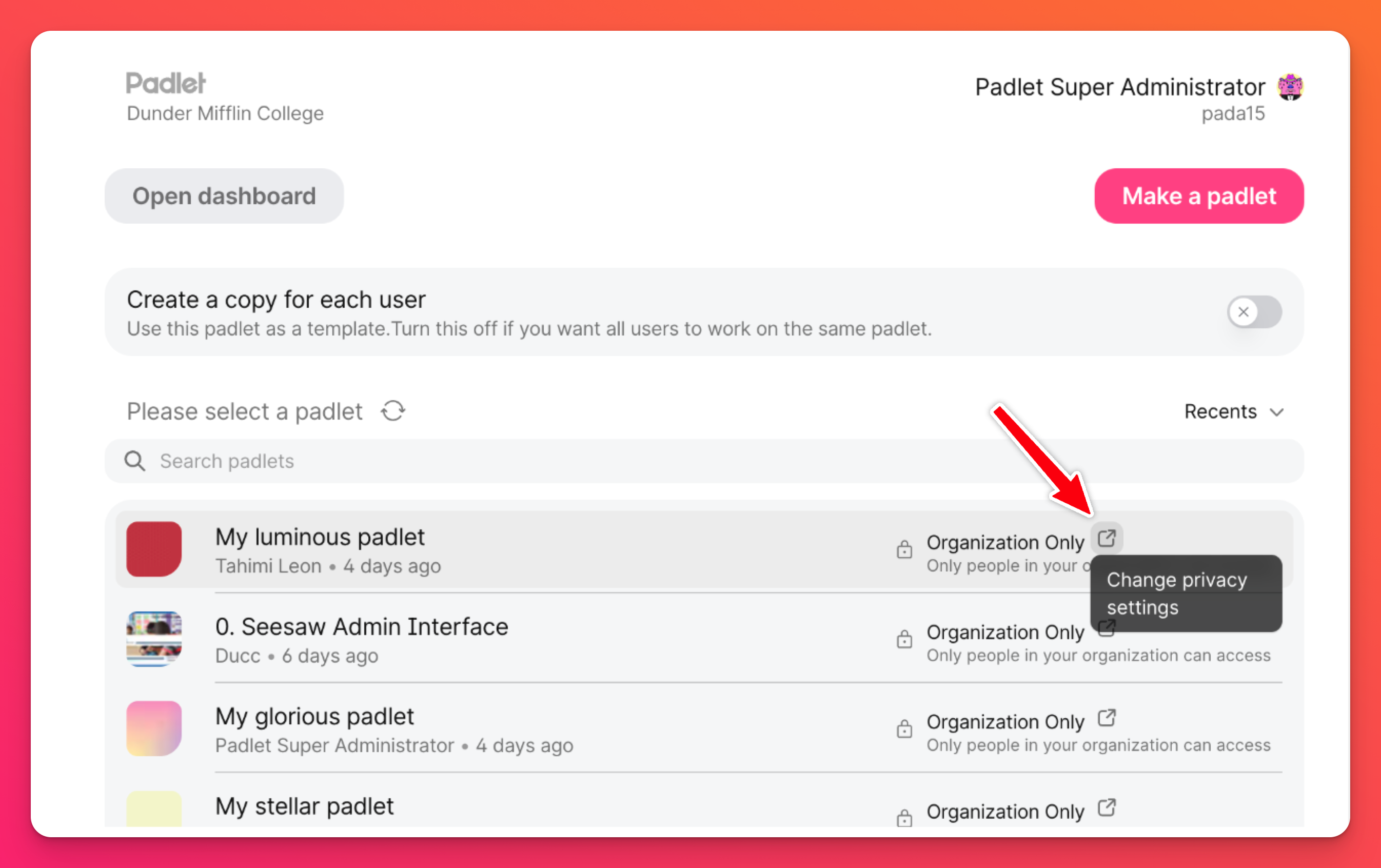
Adjust privacy or sharing options (if needed) by clicking the arrow button to navigate to the padlet, open the Share panel and make your updates.
- Save and publish
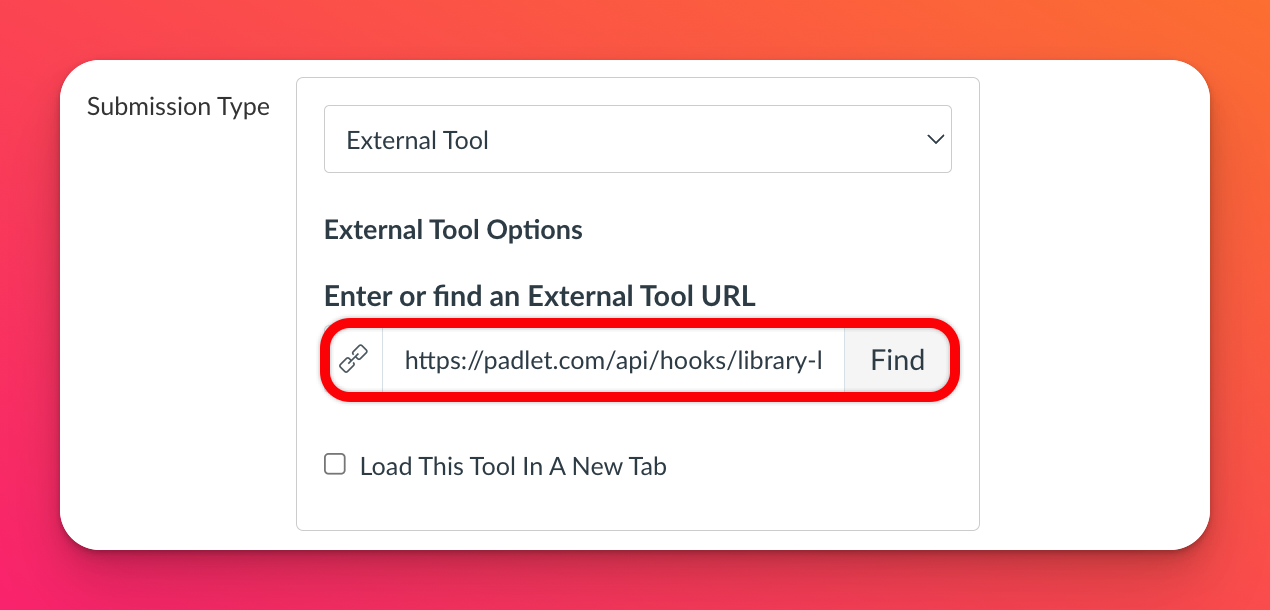
A padlet link will appear automatically in the 'External Tool URL' field. Click Save or Save and publish.
Your padlet is now embedded in the assignment view inside Canvas.
- Configure student copy options (optional)
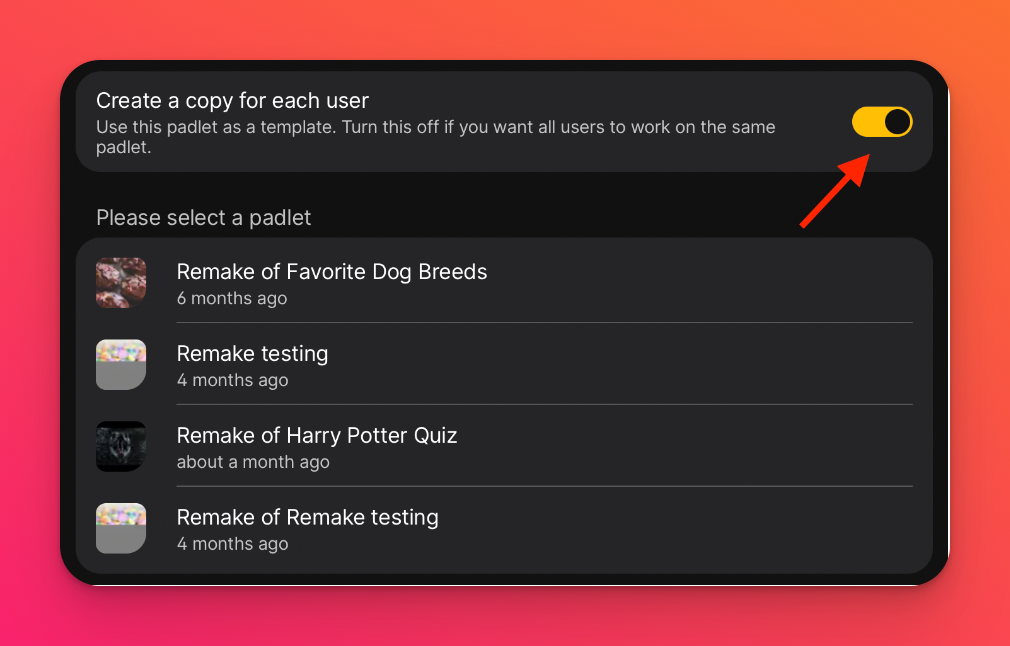
If you want each student to have their own version of a padlet, toggle 'Create a copy for each user' ON. Each student will get an individual padlet linked to the assignment, and you'll automatically be added as a collaborator.
Quick summary
In short:
- Admins (steps 1-8) connect and authorize Padlet in Canvas (system-level setup)
- Teachers (steps 9-14) use Padlet within courses (course-level usage)