Google Workspace and Classroom Rostering
 Updated 2 weeks ago
by
Rana Wilds
Updated 2 weeks ago
by
Rana Wilds
Padlet supports rostering through both Google Workspace for Education and Google Classroom. These integrations help automatically sync users, memberships and class groups with your Padlet for Schools account.
- Google Workspace: Rosters users
- Google Classroom: Rosters user groups (classes)
What you need
To set up Google Workspace and Classroom rostering, you need two things:
- An Admin role in Padlet - You must have an assigned Admin role within your Padlet for Schools account
- An Admin role in Google - You must also have an Admin role within your Google Workspace for Education account
Step-by-Step Setup (Google Workspace rostering)
- Log into the Padlet account with Admin access and click on the Settings cog icon in the upper-right corner of the dashboard.
- Click on your School account (from the top), followed by Connections.
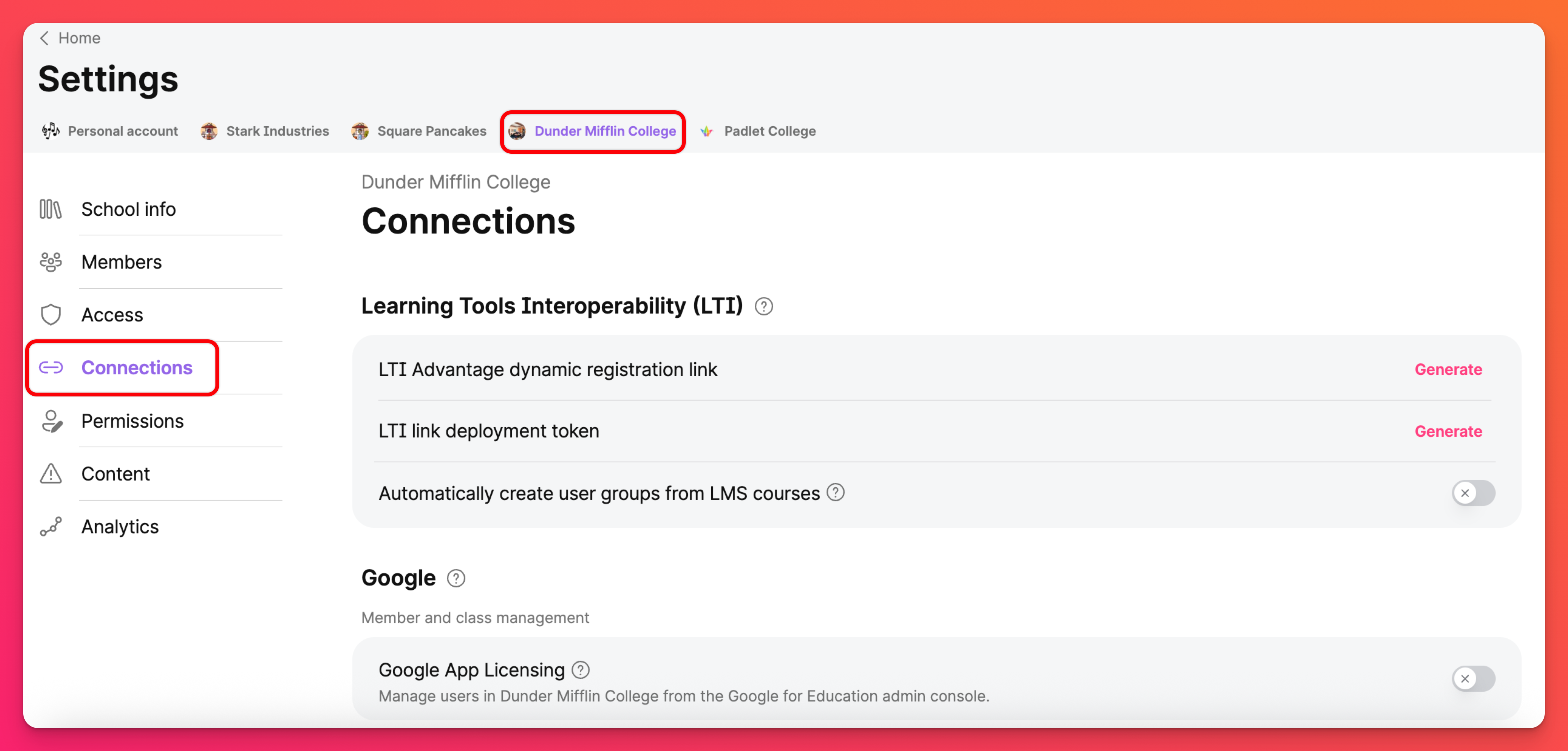
- Under the 'Google' section, click Set up next to 'Google Workspace rostering.'

- A warning message will appear to confirm you'd like to proceed. Click Continue.
- A Google login window will open. Choose your Google Workspace for Education admin account to connect.
- Padlet will request access to view your domain's users, groups and Google Classroom rosters. Grant permission to continue.

This allows Padlet to view groups on your domain, view and manage users in your domain, and access Google Classroom class rosters.
- Complete the connection
Once the steps above are completed, your Google Workspace account will be connected to Padlet. An initial user sync will run automatically.
Rostered members can be viewed on the Members page in Padlet. To navigate to the Members page, click on the Settings cog icon on the dashboard > select the School account from the top > Members.
Step by Step Setup (Google Classroom rostering)
To sync classes from Google Classroom, follow these steps:
- Log into the Padlet account with Admin access and click on the Settings cog icon in the upper-right corner of the dashboard.
- Click on your School account (from the top), followed by Connections.
- Next to 'Sync classes from Google Classroom,' toggle the button ON
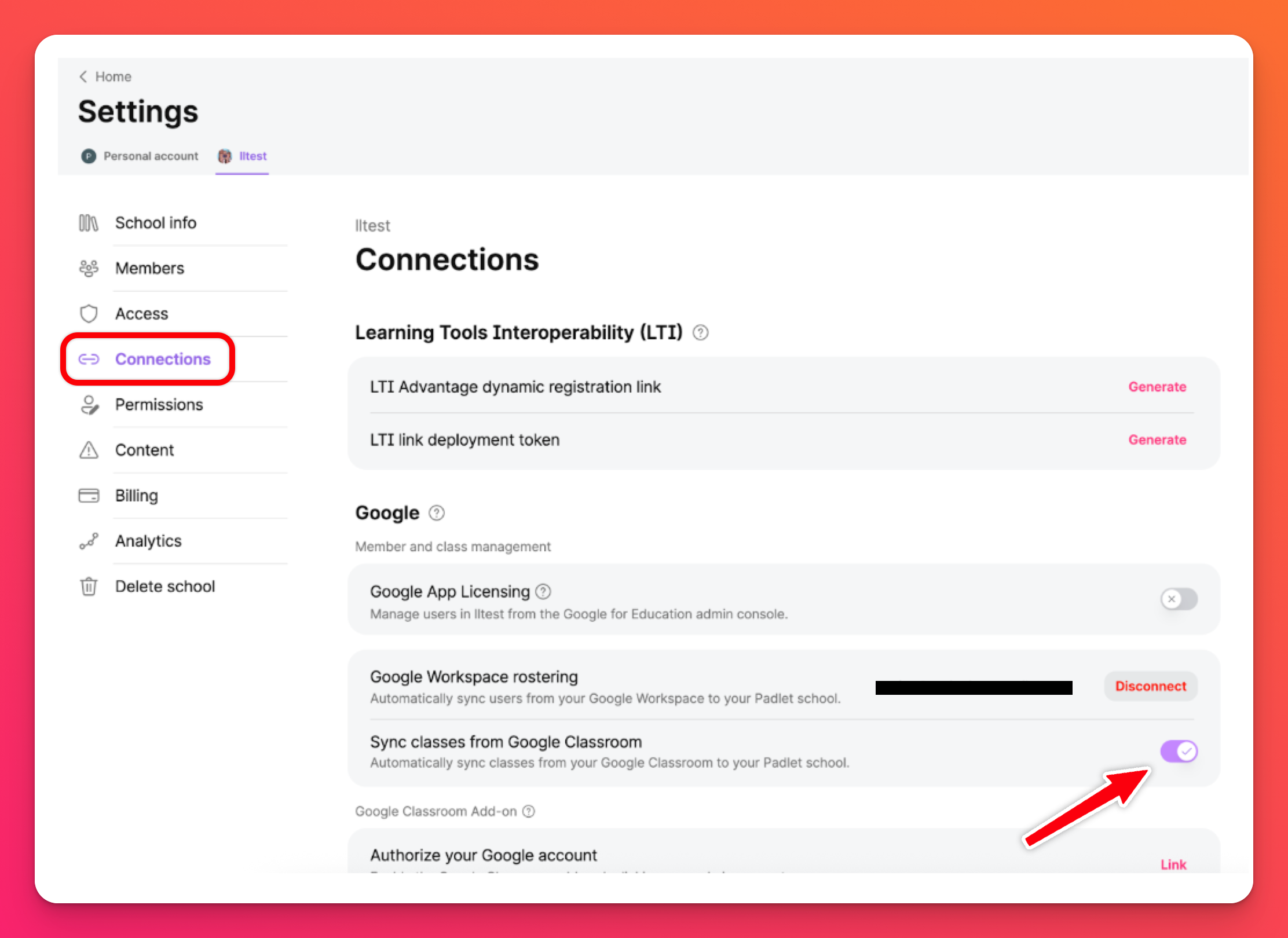
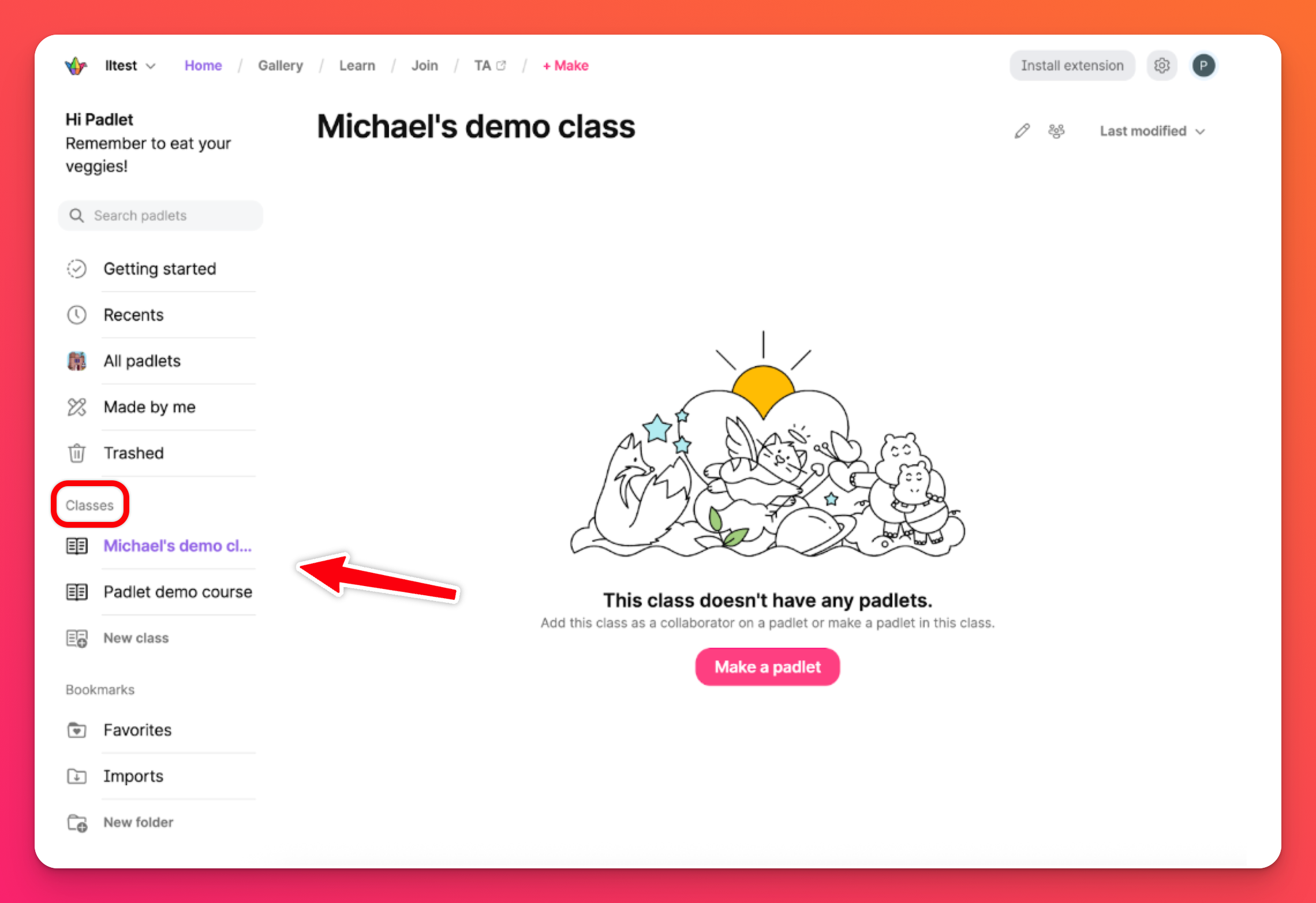
Within one minute, all classes and their enrolled users from Google Classroom should be rostered and appear in Padlet.
FAQs
What happens if I remove a user from Google Workspace?
How often are syncs performed?
My connection failed. What should I do?
2. Make sure your account within Padlet has been given Admin permissions.
3. If the above two are correct, try reconnecting. (Settings -> Connections -> Google Workspace rostering -> Disconnect -> Reconnect)