Create and manage classes
 Updated 3 weeks ago
by
Rana Wilds
Updated 3 weeks ago
by
Rana Wilds
Share padlets with a group of students by creating Classes. Formerly known as groups, Classes can be used to organize members into smaller cohorts, such as classes, project teams or departments.
Say you have an entire class you'd like to invite to contribute posts to your board. Instead of inviting them all individually, one at a time -> Create a Class! Add your students, find the Class to invite and share with them all at the same time.
Creating classes
Anyone who has a Teacher, Admin or Owner role within a Padlet for Schools account can create classes! There are two different ways to do this:
- Through an LMS - If your Padlet for Schools account is connected to a LMS, you can enable automatic user group provisioning. Learn how to sync them here: Sync your LMS classes to Padlet user groups.
- From the dashboard - Under 'Classes,' click New class to begin.
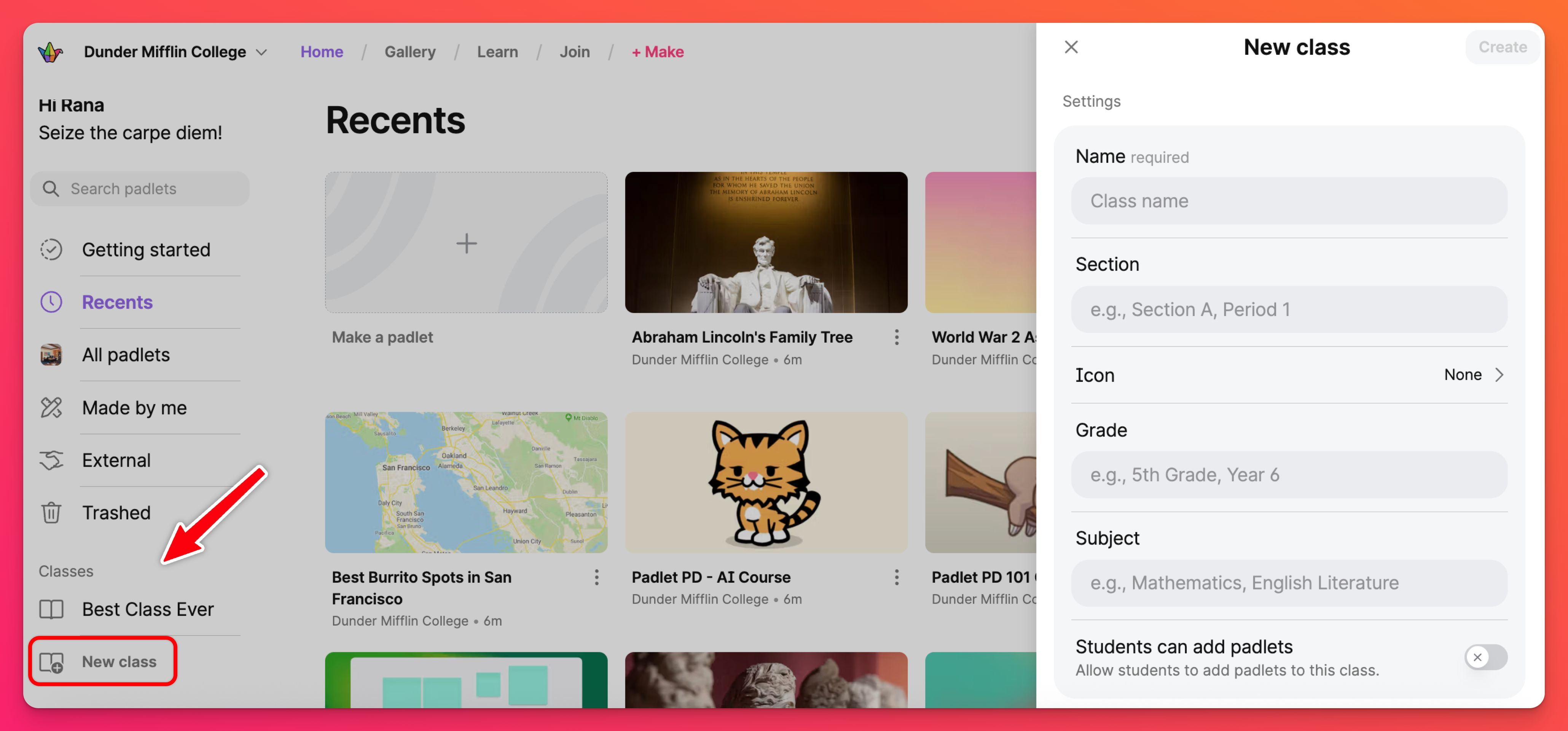
Set up your Class group in the panel on the right and click Create!
Once your Class is created, you can find it listed on your dashboard under 'Classes.'
How to add/remove users from a Class
There are two different ways you can add/remove users from a Class:
- Through an LMS - If your Padlet for Schools account is connected to a LMS, you can add/remove users from a group directly from your Learning Management System. Learn how to add/remove them here: Sync your LMS classes to Padlet user groups.
- From the dashboard - Within the class information panel, add users by searching for them in the 'Add a member' field at the bottom.
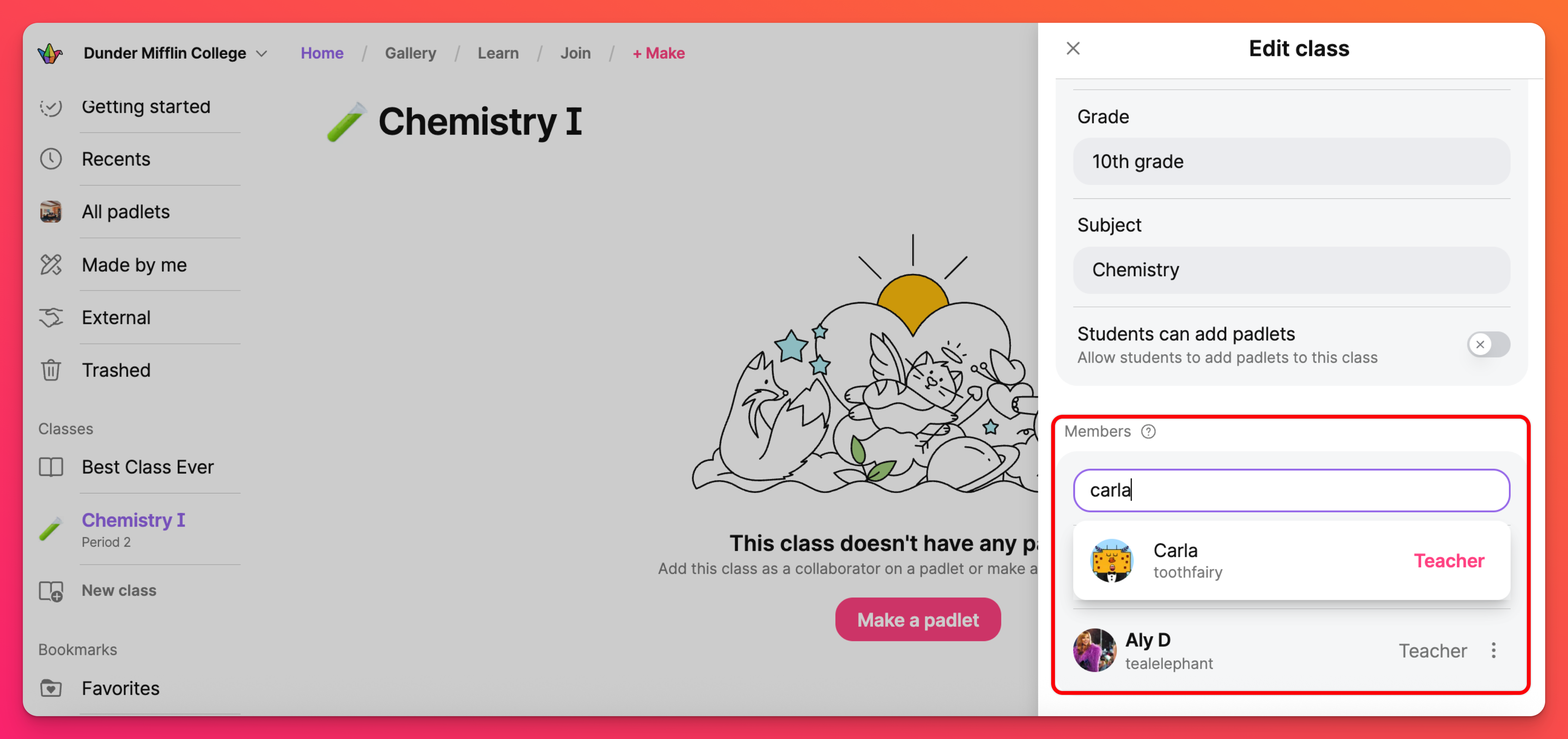
Class roles will be based on roles assigned within the account. All Admins and the Owner within a school account, as well as the creator of the class, will have a Teacher role, while everyone else added will be a Student.
Notifications
What happens when members are added to a Class? How do they know they are a part of it? This is the same process as when you're invited individually to a padlet. All Class members will receive an email notification to let them know they've been added to a Class and invited to your padlet.
Inviting a Class to collaborate
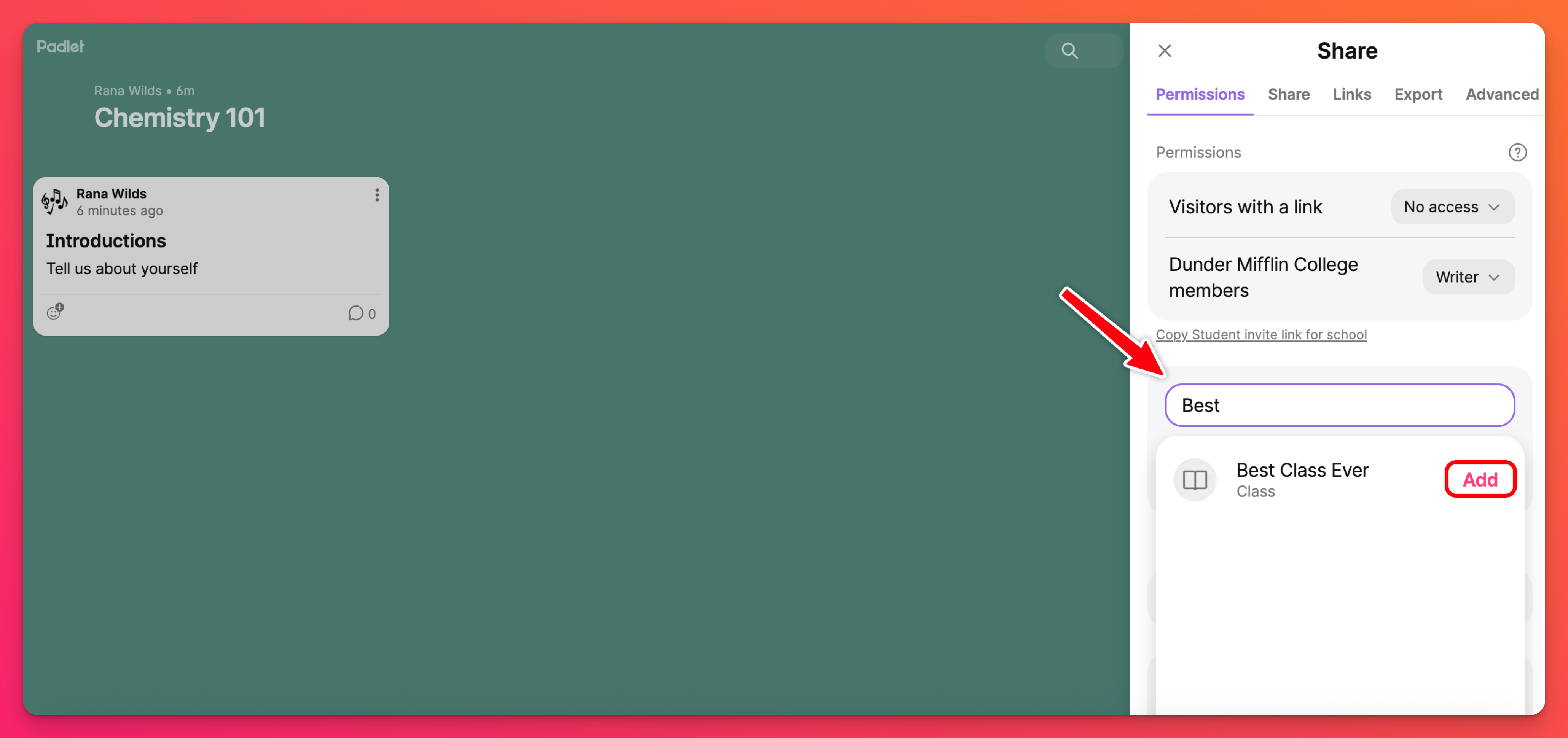
Once you have created your Class you can invite the group as a whole to your padlet! To invite one of your Classes to collaborate on your padlet, it is very similar to inviting individual users. Simply open the padlet and click on the Share arrow button at the top of the page > type the name of your Class in the 'Add a collaborator' field. Once you have selected your Class, click Add!
Deleting a class
Teaching a new class this year? You can remove the classes you've set up and create new ones! To remove a class, select it from the left side of the dashboard. Then, click Edit class. At the bottom under 'Admin,' select Archive class.
Archived classes are removed from your workspace but the padlets are not deleted. To un-archive, please contact Padlet support.
FAQs
I'm a student in my Padlet for Schools account and I can't add a Class to collaborate on my padlet. I thought it was available to everyone?
Teachers/Admins: Can add any Classes
Students: Can only add Classes they belong to